
The Reccord menu records what you do on screen, with mic, voice-over or background music.
Recording your Heliciel working session
A propeller study is delivered in figures and drawings; it is often explained better in motion. Filming the session — the geometry building itself, the curve moving as you change the rotation speed — saves a meeting. Heliciel records what happens on its screen, with the soundtrack of your choice.
1: The Reccord menu
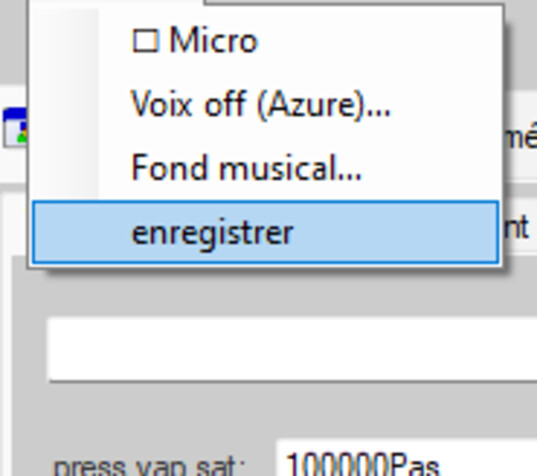
The recording menu
2: Choosing the soundtrack
- Mic: you comment live;
- Voice-over, and its configuration: a prepared narration, useful when the demonstration calls for precision;
- Background music, and its configuration: for a silent sequence meant to illustrate, not to explain.
The two configuration windows are still in French in this version; the screenshots below show them as they appear.
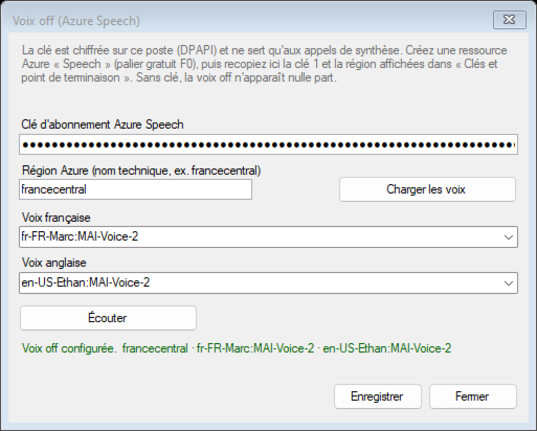
The voice-over
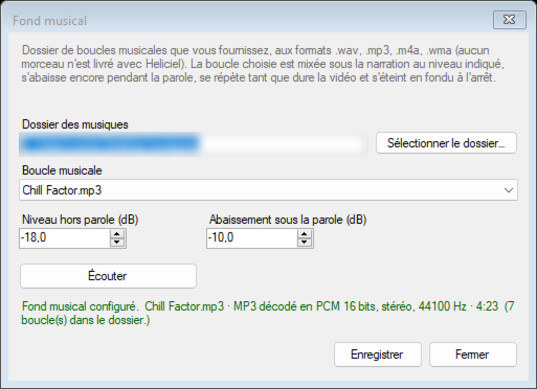
The background music
3: Recording a sequence
One piece of method: prepare the project before starting the recording, and film one idea at a time — a 3D rebuild, a search for the right rotation speed, a comparison of variants. Short sequences get watched; long ones get closed.
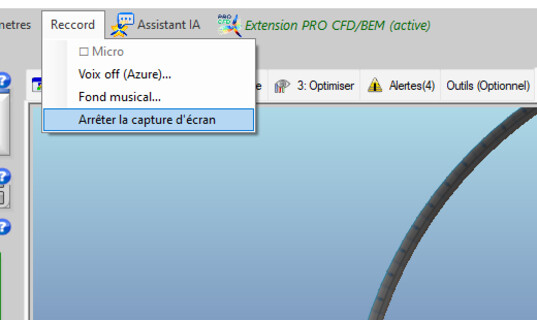
Recording in progress
4: Publishing
The YouTube publishing... entry of the Download menu takes the sequence produced. Nothing obliges you to publish: the file can stay in the study folder, next to the project and the exports.
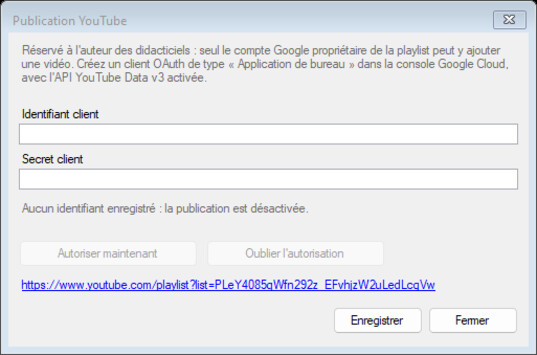
Publishing
 Global site map
 Mecaflux
 Tutorials Mecaflux Pro3D
 Tutorials Heliciel
 Tutorials Heliciel PRO CFD
 Mecaflux Store
 Compare software functions
 Quotes, Orders, Payment Methods
 project technical studies