Propeller, wind turbine and wing drawings, plans and performance: edit and export in Heliciel
To edit the drawings, plans and performance of a propeller, wind turbine or wing, Heliciel gathers its outputs in the Edit / Tools menu: 3D blade plans, profile images, the 2D construction drawing, calculation notes, the force, speed and angle diagram, and the multiple analysis. Once the performance has been updated, these outputs let you build the blade, keep a record of your work and compare your variants.
When the performance of the propeller, the wind turbine or the wing has been updated, Heliciel software lets you record the result of your work in several forms. The sections below go through them, from manufacturing to analysis.
On this page:
- 1: 3D propeller and wing blade plans for CAD
- 2: Profile images to build a wind turbine or propeller blade
- 3: 2D construction drawing of the blade
- 4: The screenshot editor
- 5: Calculation notes
- 6: Angle, speed and force diagram of a blade element
- 7: Multiple analysis and actual rotation speed
1: 3D propeller and wing blade plans for CAD
Heliciel produces the 3D blade plans in IGS format, which you import into your CAD (Computer-Aided Design) software. Heliciel's 3D engine
also handles other formats, including STEP and STL. You find them in the Edit / Tools menu, for example Export blade to 3D IGS format or Export complete propeller .STEP. The page on 3D plans of propeller and wing blades details these exports.

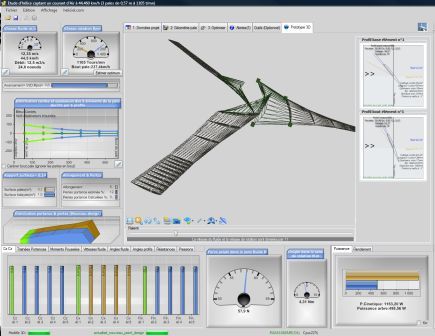
The 3D prototype of a blade in wireframe display, inside the Heliciel interface: this is the geometry that the exports send to CAD.
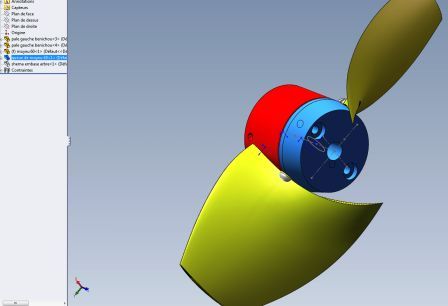
A concrete example: the export of 3D propeller blades to SolidWorks.
Two blades exported from Heliciel, assembled on a hub in SolidWorks.
2: Profile images to build a wind turbine or propeller blade
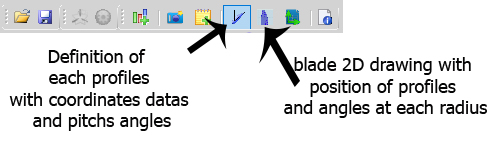
Two toolbar buttons serve manufacturing: the first opens the detailed definition of each profile, with its coordinates and its pitch angle, and the second opens the 2D view of the blade, with the position and pitch angle of the profiles.

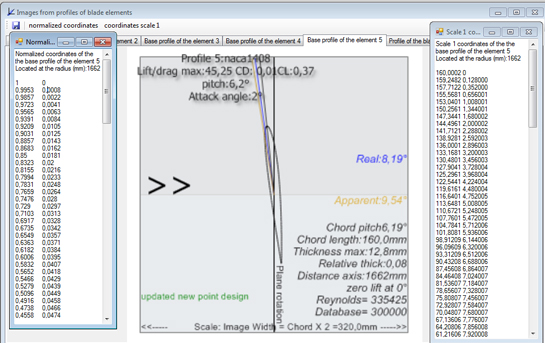
If we want to build our wind turbine blade, propeller or wing by cutting out profiles positioned at different angles of attack, the Images 2d profiles window will be valuable. It gives a series of images of the section profiles, with their dimensions, their position and their pitch angle. The list of profile coordinates, normalised or at scale 1, is available under each tab of the elements that make up the blade or wing.

One tab per blade element. Here, the naca66210 profile of element 9: pitch angle 51.6°, angle of attack 7°, chord 75 mm, distance to the axis 168 mm, with its normalised coordinates (left) and its scale-1 coordinates in millimetres (right).
With these images, a prototype can be made in a few hours. Building a wind turbine or a propeller becomes simple with a drawing of the blades and profiles.
3: 2D construction drawing of the blade
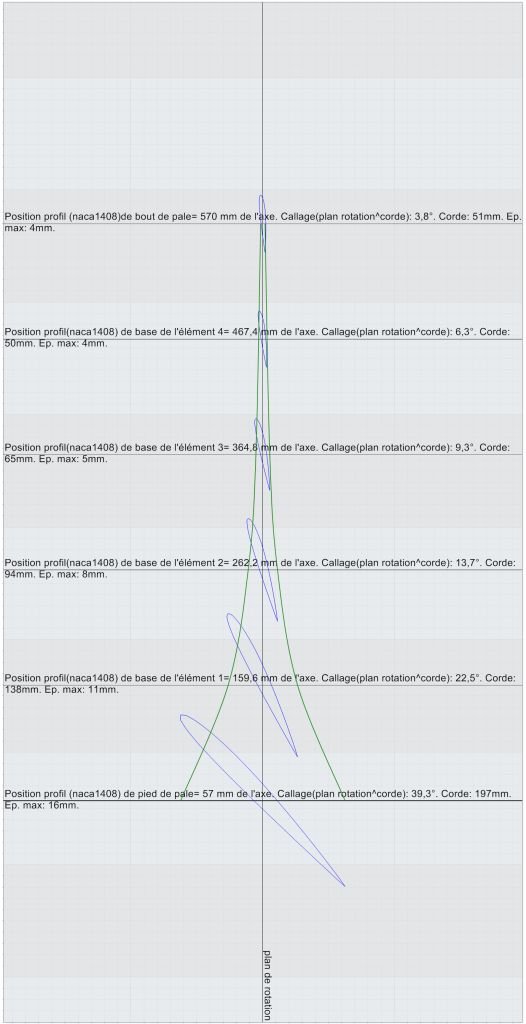
The 2D construction drawing of the blade gathers this geometric data. It shows the position of the different profiles along the blade axis. In the menu, it is called Plan developed following blade straight generatrix.

The blade plan: each profile is drawn at its radius, from 57 mm at the root to 570 mm at the tip, with its pitch angle (from 39.3° to 3.8°), its chord and its maximum thickness.
The study of a propeller or wing most often consists of optimising the geometry and the speeds, in search of performance suited to the operating conditions of the project. Notes and memos are then very useful to compare the results after each change of parameter.
4: The screenshot editor
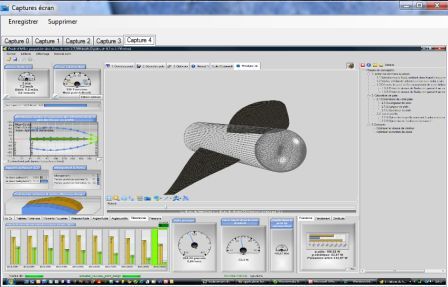
Nothing new, you might say... except that here we have an interface that manages screen copies like a memo. Stored under tabs, they let us review the successive stages of our propeller or wing project in one click. You can save a capture or delete it.

The screenshot editor: each state of the project is kept under its own tab, with the Save and Delete buttons.
5: Calculation notes
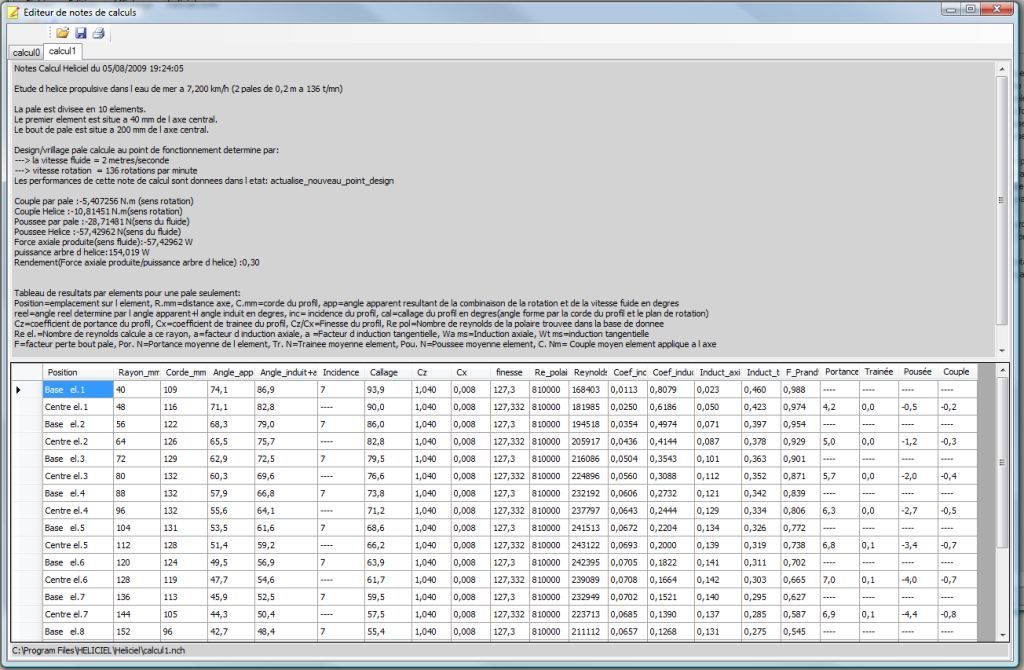
The calculation notes editor (Edit / Tools menu, Calculation notes entry) creates notes at will, and they also serve as a memo. You can save and print them. They can be read as text with Notepad, or reloaded into the editor to be compared.

The notes editor opened from Heliciel on a propulsive propeller: the start of the note recalls the operating point, followed by a results table element by element.
Here is a propeller calculation note in the notes editor:

The note gives torque and thrust per blade and for the propeller, shaft power, efficiency, then a table with, for each element, the chord, the apparent angle, the angle of attack, the pitch angle, Cl, Cd, the lift-to-drag ratio and the induction coefficients.
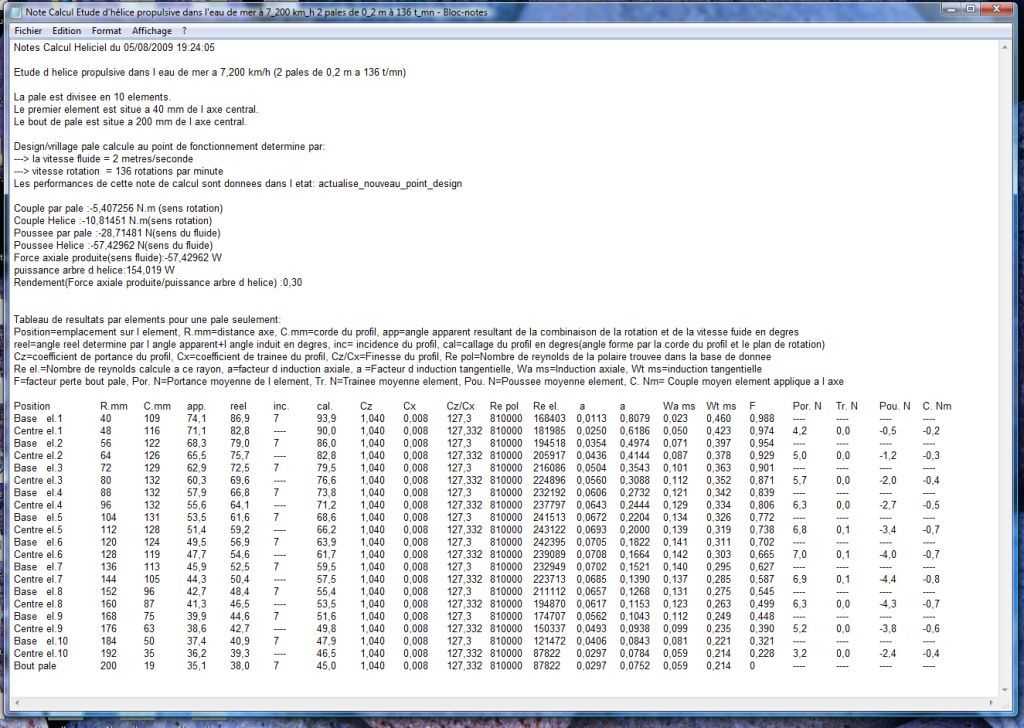
The same note opened with Notepad:

The same content as plain text: the note opens in any editor and pastes into a report without formatting.
6: Angle, speed and force diagram of a blade element
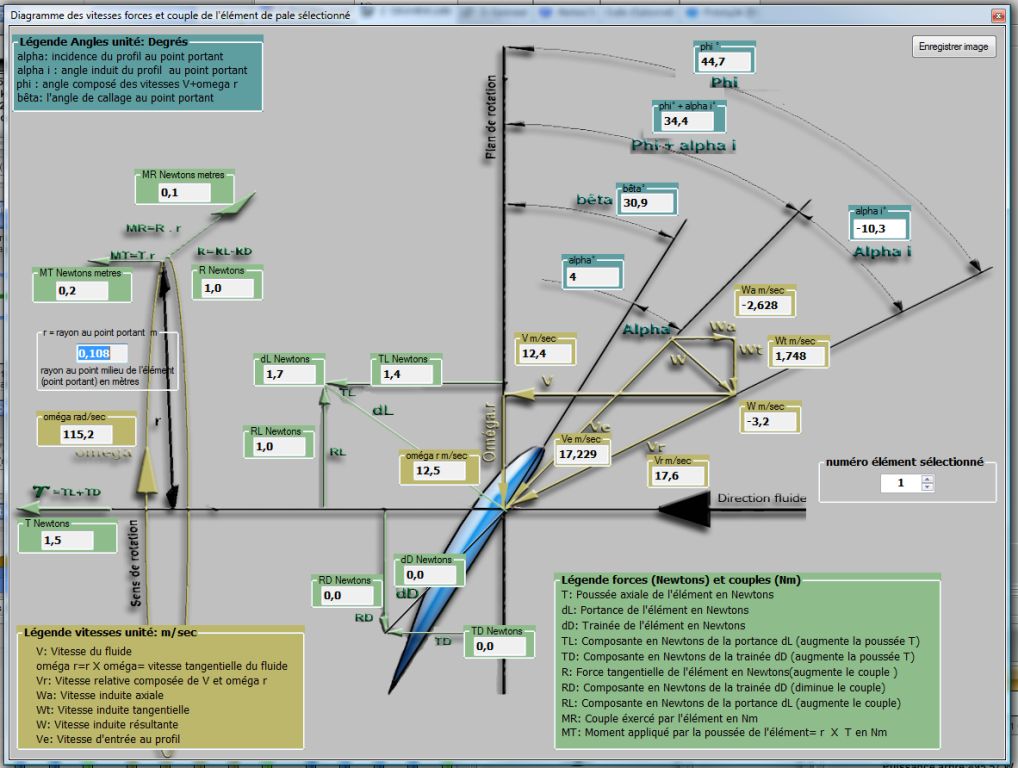
The calculation of the induced velocities and of the forces on each blade element is detailed in a descriptive scheme (Edit / Tools menu, Diagram of the forces, velocities, and angles). It makes a precise analysis of the results possible, element by element: angle of attack, induced angle, pitch angle, axial and tangential induced velocities, lift, drag, thrust and torque.

The diagram of the selected element: the angles (alpha, alpha i, phi, beta), the speeds in m/s and the forces in newtons, with a button to save the image.
7: Multiple analysis and actual rotation speed
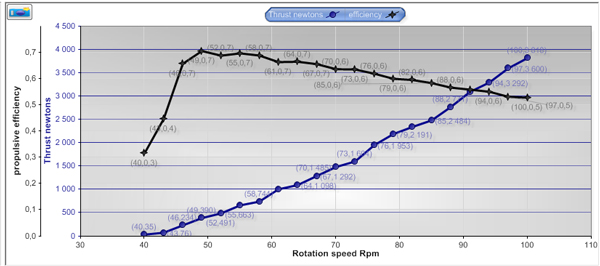
The multiple analysis draws curves and collects the "off design" performance of a fixed propeller geometry at several operating points.
Propulsive efficiency, shaft power and useful power versus rotation speed (from 200 to 380 rpm), for a single propeller geometry.
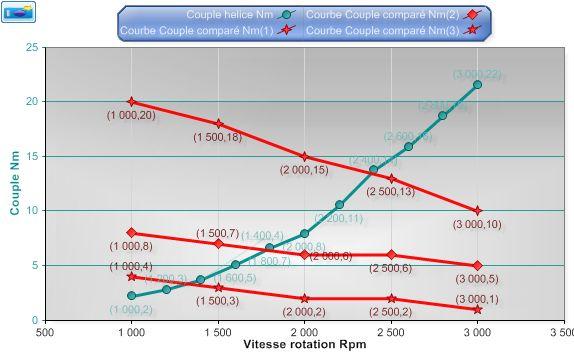
The same analysis lets you search for the actual rotation speed (the operating point) for electric motors and generators coupled to propellers. The propeller settles at the speed where its torque equals that of the motor: it is the intersection of the curves. The page on rebuilding the propeller at a new operating point details this search.
The propeller torque (green curve, in N·m) crosses the torque curves of three compared motors (in red): each crossing gives an actual rotation speed.
To go further, we can follow the guide to making a wind turbine from these drawings, or see why the twisted geometry to manufacture depends on the chosen operating point.


Global site map
Mecaflux
Tutorials Mecaflux Pro3D
Tutorials Heliciel
Tutorials Heliciel PRO CFD
Mecaflux Store
Compare software functions
Quotes, Orders, Payment Methods
project technical studies