
Design stages of a propeller, wing or wind turbine: from requirements to optimisation
The design of a propeller, wing or wind turbine runs in four stages: define the problem, draw the geometry, analyse and optimise, then evaluate the performance. These stages loop: a disappointing result sends you back to the geometry, or even to the definition of the problem. Heliciel follows this organisation with tabs and a progress tree, while leaving you free to move from one stage to another.
On this page:
- 1: The four design stages of a propeller or wing
- 2: Project data: fluid, study type and operating point
- 3: Blade or wing geometry: dimensions, profiles, material
- 4: Optimising rotation speed and number of blades
1: The four design stages of a propeller or wing
Heliciel offers an organisation of the propeller design stages that keeps the design flexible and ergonomic. The different stages are defined as follows:
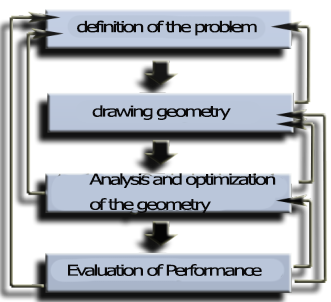
The four stages follow one another, but return arrows let you go back to any earlier step.
- Problem definition (Project data) means gathering the data that define the operating point of the propeller. Depending on the project, the propeller captures the energy of a fluid stream to turn it into power on the shaft, or turns the power of the shaft (the energy of the motor) into thrust on a fluid stream. The fluid may be a liquid such as water or a gas such as air.
- Drawing the geometry of the wing or propeller and its blades starts from known models and design assumptions. Your assumption may be, for example, a maximum blade length (to reduce tip losses), a minimum thickness (for profile performance), a minimum volume of material (less weight, cost and friction) or simple shapes (for ease of manufacture).
- Analysis and optimisation of the geometry are tied to the drawing in an interactive loop, which refines the geometry while respecting the problem definition. The method must stay flexible enough to let you redefine the problem if some parameters are infeasible or incompatible.
- Performance evaluation is normally done by testing prototypes or models. Before actually building the propeller, we test it virtually with the BEM (Blade Element Momentum) method. New problem definitions, analyses, optimisations and geometries can then be considered: we design a geometry, check its strength and test its performance until we are satisfied.
In Heliciel, the propeller and wing calculation software, tabs and a progress tree highlight this organisation. They also let you move freely between the different stages of building the propeller or wing.
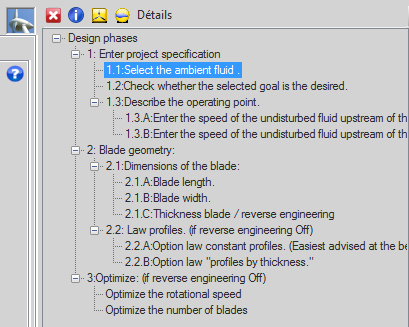
The progress tree: each line is a design step (1: project specification, 2: blade geometry, 3: optimise), and the current line is highlighted.
2: Project data: fluid, study type and operating point
The first tab, 1: Project specifications, holds three sub-tabs that you fill in order: the fluid, the goal and the operating point.

1.1: Fluid
First, we select the ambient fluid and its temperature with the fluid editor. About 120 gases or liquids can be used directly, with their viscosity and density data as a function of temperature. For air, Heliciel asks for the altitude, to adjust the density to the pressure.
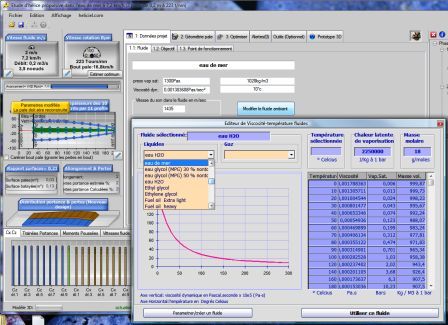
The fluid editor: list of liquids and gases, viscosity curve against temperature and table of values.
1.2: Choosing the study type and goal
We continue by choosing the goal of our propeller or wing. Four types of study can be carried out with Heliciel:
- Propulsion propellers (boat propellers, aircraft propellers, helicopter rotors...)
- Pressure propellers driven by a flow rate (ventilation fans, axial pump propellers...)
- Energy-harvesting propellers (wind engines, wind turbines, tidal turbines, axial Kaplan turbines...)
- Wings, foils, hulls (wings, fins, foils, hydrofoils, sails, centreboards, rudders...)
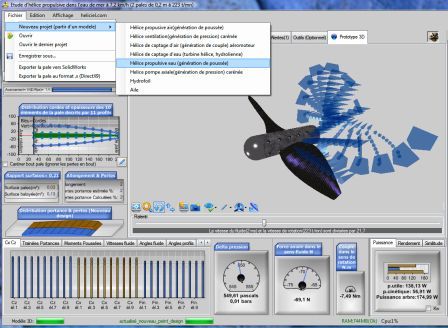
The File menu offers to start a new project from a model: propulsive propeller (in air or in water), ventilation propeller, energy-harvesting propeller, axial pump, hydrofoil or wing.
1.3: Operating point
This is where you enter the operating data: the fluid velocity (or the vehicle speed) and the desired rotation speed. If you do not know it, Heliciel proposes an optimum speed. The page on the operating point of a propeller details this step.
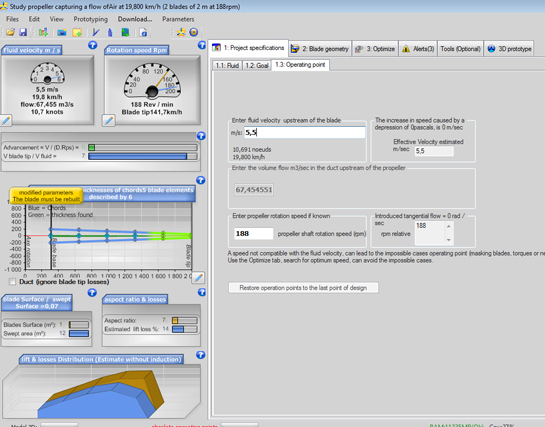
Tab 1.3: fluid speed upstream of the blade, volume flow rate for a ducted propeller, and shaft rotation speed.
3: Blade or wing geometry: dimensions, profiles, material
The second tab, 2: Blade geometry, brings together the drawing of the blade. It contains the dimensions, the profile law and the advanced options.

2.1: Blade dimensions
In the 2.1: Blade dimensions tab, a series of sliders lets you model the shape of your blade or wing in all its dimensions: length, width, thickness. To go further, see the chord distribution and the thickness distribution.
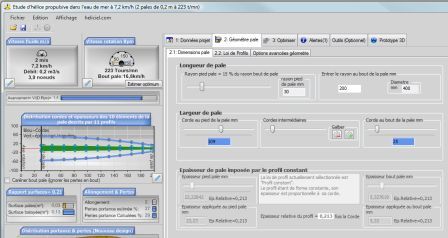
The sliders for blade length, width (chords at the root, intermediate and at the tip) and thickness, with the resulting diameter.
2.2: Law of automatic profile selection in the database
 Heliciel uses its database of profile performance to choose the optimum profiles that match the operating conditions and the geometry of your blade or wing. Two selection laws are available:
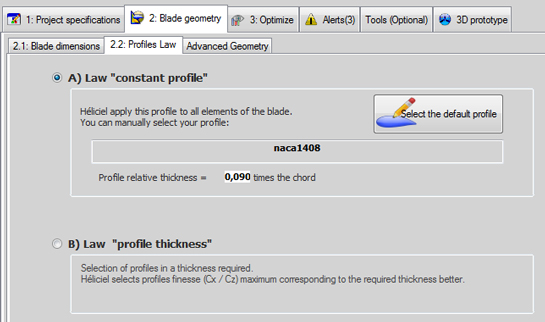
The profile law tab, with its two options: A) Law "constant profile" and B) Law "profile thickness".
- A: constant profile law. Heliciel applies the profile you selected all along the blade, and the blade thickness stays tied to its chord (its width). It is the simplest law, and strongly recommended for beginners.
- B: profile thickness law. You choose how the thickness evolves along the blade, so the profiles have different shapes. Heliciel searches for and selects the optimum-performance profiles that best match the desired thickness. This law takes a little more experience, because it often involves discontinuities of shape and angle of attack, which you handle with the functions that smooth the angles of attack and force the profile shapes.
2.3: Advanced geometry options
The advanced functions are optional, and a beginner can ignore them. They let you determine the material and the building structure of the blade or wing. These parameters enter the strength calculation of the blade elements, and help you choose your construction method and material.
The blade or wing can have one of these structures:
- ribbed, with 1, 2, 3 or 4 spars;
- solid;
- shell;
- round tube frame;
- square tube frame.
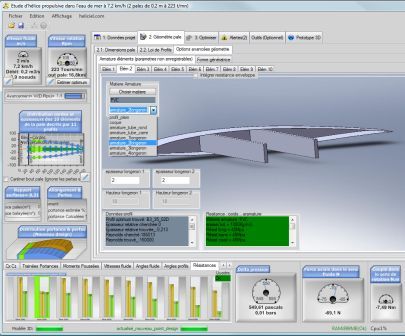
The Advanced Geometry tab: the structure of each element (here, spars) appears in 3D, with the chosen material and the strength result of the frame.
A material editor sets the strength data automatically. You can save and add other materials whose mechanical characteristics you know.
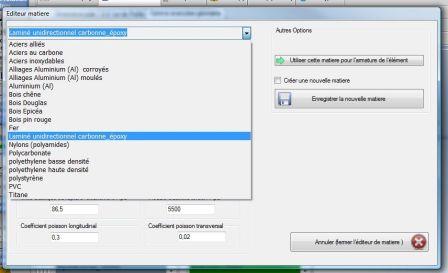
The material editor: pick a material from the list, or create your own with its coefficients and save it.
The generatrix shape is another advanced blade geometry function. It changes the alignment generatrix of the blade profiles, and lets you generate 3D models of complex shapes (curved or conical blade).
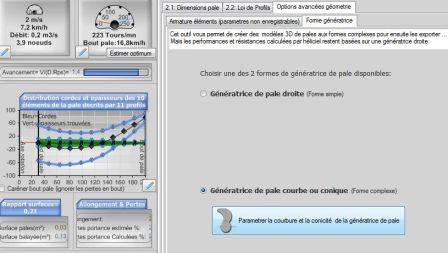
Two blade generatrix shapes are offered: straight (simple shape) or curved or conical (complex shape).
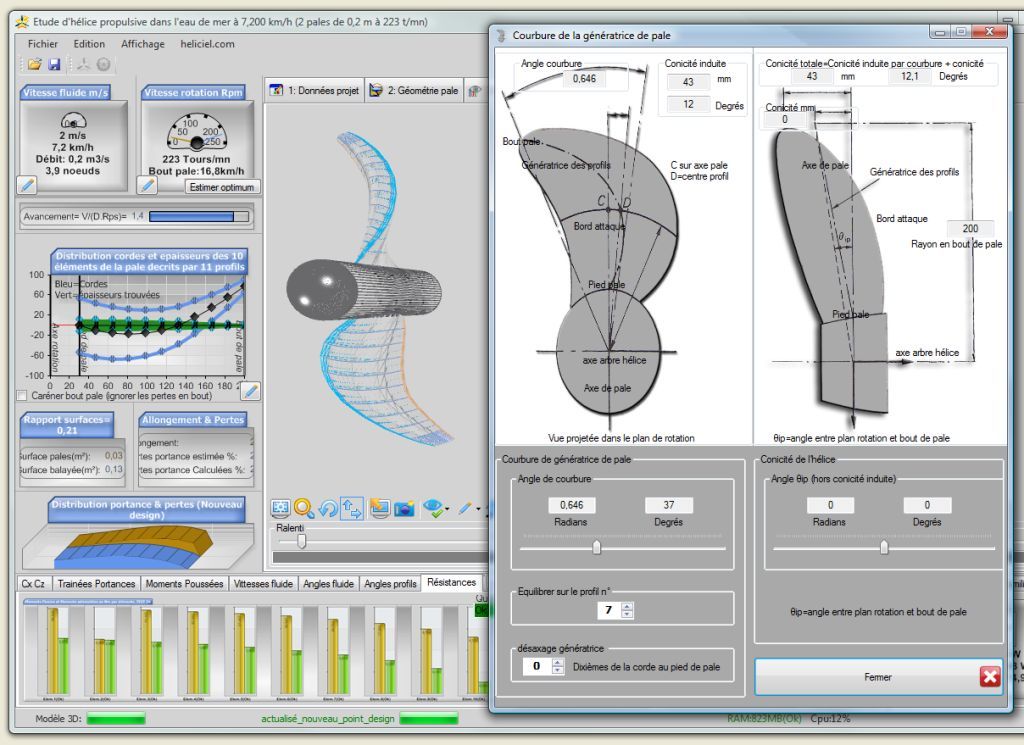
The generatrix setting window: curvature angle, conicity and offset, with the view of the blade in the plane of rotation.
A precaution worth knowing: Heliciel does not take the curvature of the generatrix into account in its performance and strength calculations. A blade with a straight generatrix and a blade with a curved generatrix therefore get the same calculated strength and performance, whereas in reality blade curvature influences these parameters.
4: Optimising rotation speed and number of blades
The 3: Optimize tab holds the functions that search for the optimum rotation speed. You can also change and test the number of blades, which shows how the number of blades affects the rotation speed that gives the best efficiency. The tab also offers a check of the cavitation threshold. The page on optimising the rotation speed and the number of blades details these functions.
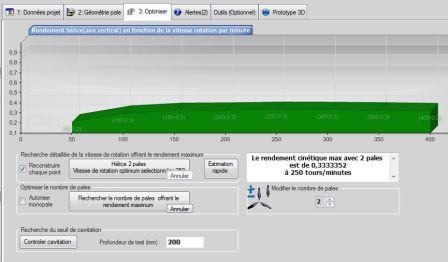
Propeller efficiency versus rotation speed for a given number of blades, with the speed giving the maximum efficiency and the buttons that search for the number of blades and check cavitation.
To go further, we can browse Heliciel in detail for a thorough description of the software functions, or follow the Heliciel tutorials and videos to see these design stages put into practice.
 Global site map
 Mecaflux
 Tutorials Mecaflux Pro3D
 Tutorials Heliciel
 Tutorials Heliciel PRO CFD
 Mecaflux Store
 Compare software functions
 Quotes, Orders, Payment Methods
 project technical studies