
Detailed propeller and wing project parameters: displaying the Infos conception pane
To display the detailed parameters of your propeller or wing project, open the View menu and choose "Infos conception" (design information). A pane opens on the right of the window and gives access, point by point, to all the quantities the software uses. We built this access so that Heliciel offers maximum transparency: you can check each parameter of the calculation instead of taking it on trust.
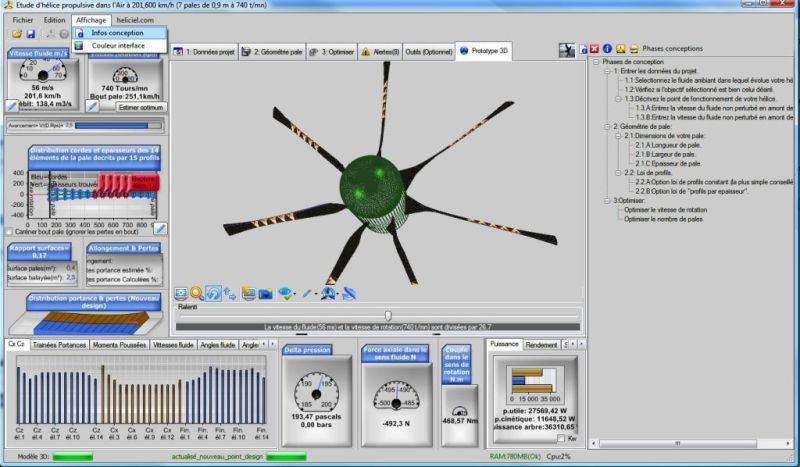
The Infos conception entry of the View menu opens the pane on the right of the window, here with the tree of design phases.
In this page:
The design information pane has three parts, which you choose with the buttons of its toolbar.
1: The design phases
A navigation tree runs through the parameters of your project. It is structured according to a series of design phases: enter the project data, describe the blade geometry, then optimize. It helps you keep a thread of progression, especially if you are a beginner. When you select a design phase of a propeller or wing in the tree, the tab that sets this phase opens in the main window.
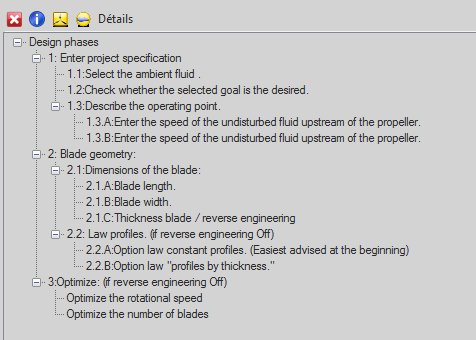
The tree of design phases: 1 project data, 2 blade geometry, 3 optimize.
2: The project parameters
This part lists the parameters of the project, of the propeller, of the blade or of the wing as a whole. They are grouped by family, which you expand as needed: analysis, off-design and reverse engineering analysis, wing analysis, blade generator, cavitation, geometry, and so on. In the geometry group, for example, you find the number of blades, the blade tip and root radii, the chords, the propeller pitch and the swept area.
At the bottom of the pane, a frame describes the selected parameter. These parameters are read-only: to change them, use the tabs of the main interface.
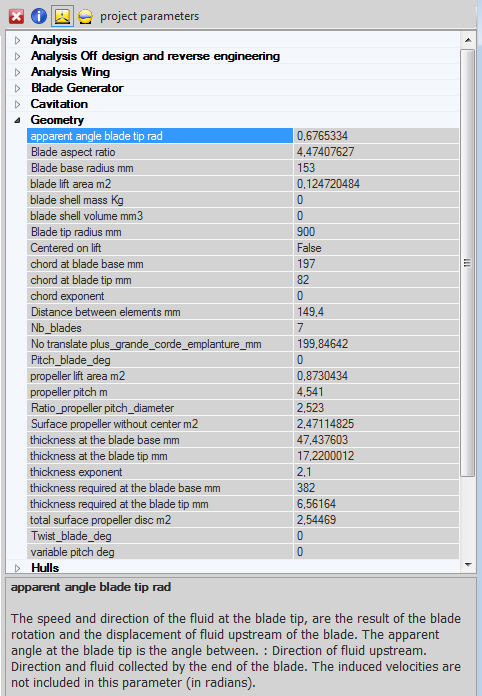
The project parameters, Geometry group expanded, with the description of the selected parameter at the bottom.
3: The blade element parameters
Because the blade or wing is divided into elements, you can look at each parameter of the elements, for a precise analysis of the situation. A drop-down list takes you from one element to the next. The parameters are arranged in groups: angles, forces, geometry, induction, pressures, profiles, profile performance, mechanical strength, velocities.
Each line comes with a description. In the capture below, the average lift coefficient of the element is defined as the average of the CL of the base profile and the end profile of the element; this parameter determines the lift of the element. These parameters are read-only: to change them, use the tabs of the main interface.
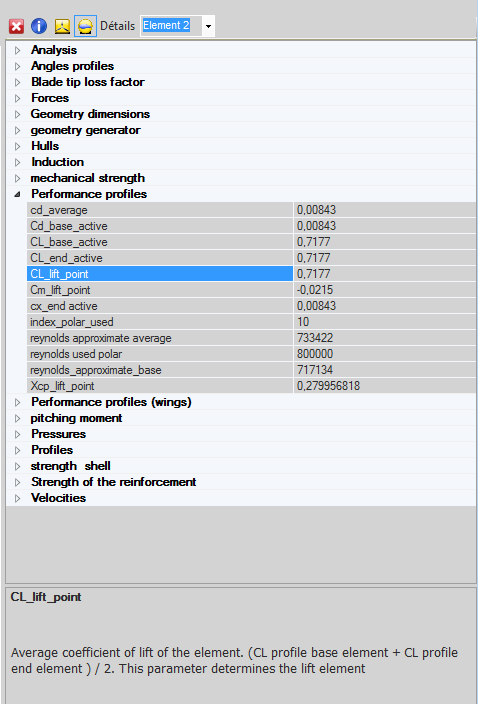
The parameters of element 2, Performance profiles group expanded: Cd, CL, approximate Reynolds number and centre of pressure of the profile.
To go further, we can see how the working screen is organized in the page on discovering the software interface, or open a starting project with the page on opening a propeller or wing project.
 Global site map
 Mecaflux
 Tutorials Mecaflux Pro3D
 Tutorials Heliciel
 Tutorials Heliciel PRO CFD
 Mecaflux Store
 Compare software functions
 Quotes, Orders, Payment Methods
 project technical studies