
Open a propeller, wing or wind turbine project in Heliciel: three ways to start
To open a propeller, wing or wind turbine project in Heliciel, the File menu offers three ways: start from a basic model, open a project you have already saved, or reopen the last project. The choice depends on your situation: a new project to build, work to resume, or a study to continue where you left it.
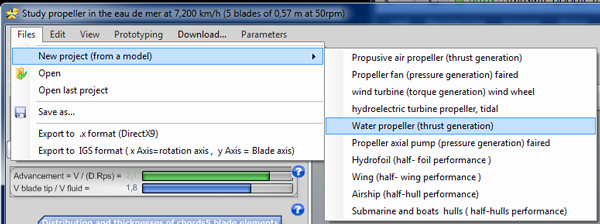
The File menu: on the left the three ways to open a project, on the right the list of basic models.
In this page:
- Start from a basic propeller or wing model
- Open a saved propeller or wing project
- Reopen the last project
1: Start from a basic propeller or wing model
The New project (from a model) entry starts a design project from a basic model. A model is a project that is already prepared, with settings that match a common type of application. Heliciel saves you from filling in every parameter before you see a first blade: you start from a consistent project and change it step by step to meet your requirements.
Eight basic project types are offered:
- propulsive propeller in the air (thrust generation);
- ventilation propeller (pressure generation), ducted;
- air energy capture propeller (torque generation), for wind turbines and wind engines;
- water energy capture propeller (torque generation), for tidal turbines;
- propulsive propeller in water (thrust generation);
- axial pump propeller (pressure generation), ducted;
- hydrofoil;
- wing.
The menu list separates the families by what the propeller does to the fluid. A propulsive propeller creates thrust. A ventilation or pump propeller creates pressure, and is usually placed in a duct. An energy capture propeller takes energy from the fluid: it produces a torque on the shaft instead of receiving a torque from the engine. Choosing the right family from the start sets the direction of the calculation. The menu also offers airship and hull models (boat, submarine), for which Heliciel calculates the performance of a half-hull.
2: Open a saved propeller or wing project
The Open entry reloads a propeller or wing project that you saved with Save as.... Heliciel then retrieves the saved settings and geometry. This is the usual way to resume a study, to compare two variants of the same propeller, or to start from a project that was sent to you.
3: Reopen the last project
The Open last project entry reopens the project you worked on last. The last project is also loaded automatically at startup: when you launch Heliciel, you find your study as you left it.
To go further, we can discover the whole working screen in the page on discovering the software interface, then follow the project parameters in the page on displaying propeller and wing project parameters.
 Global site map
 Mecaflux
 Tutorials Mecaflux Pro3D
 Tutorials Heliciel
 Tutorials Heliciel PRO CFD
 Mecaflux Store
 Compare software functions
 Quotes, Orders, Payment Methods
 project technical studies