
Blade or wing frame, structure and material: choosing the construction for the strength calculation
The frame, structure and material of the blade or wing are set in Heliciel's advanced geometry options: they describe how your blade is built, and feed the strength calculation of each of its elements. These advanced functions are optional: a beginner can ignore them, and size the propeller for its performance first.
In this page:
1: Structure of the blade or wing
Heliciel takes these parameters into account in the strength calculation of the blade elements, and lets you choose your way and material of building the propeller blade or wing. For each element, the structure can be:
- ribbed, with 1, 2, 3 or 4 spars: the bending load goes through the spars, as in a light aircraft wing;
- full: the element is cut from solid material;
- shell: the element is a hollow envelope;
- round tube frame;
- square tube frame.
Each element of the blade has its own tab (Elem. 1, Elem. 2...) in tab 2: Blade geometry, Advanced Geometry, Elements structure. You can therefore give each element its own structure and material, for example a full blade root to take the largest bending moment, and a lighter blade tip.
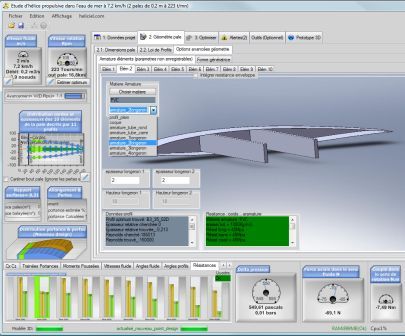
The Elements structure tab: the list of structures, the material of the frame and, at the bottom, the strength and weight data of the element.
2: Material editor and strength
A material editor sets the strength data of the chosen material automatically (elastic limit, modulus of elasticity...). You can save other materials, and add some, as long as you know their mechanical characteristics. The characteristics of the material and the structure of the element together determine the allowable moment that the blade strength test compares with the applied moment.
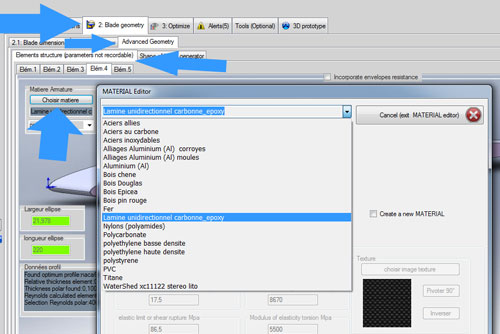
The material editor: the list of materials in the database, with their mechanical characteristics and the option to create a new one.
3: Textures of the blade elements
The textures of the blade elements follow the material: they let you see the materials on the 3D model, and you can give a different material to each element. You can also create materials with the texture of your choice for each element, from the Elements structure tab.
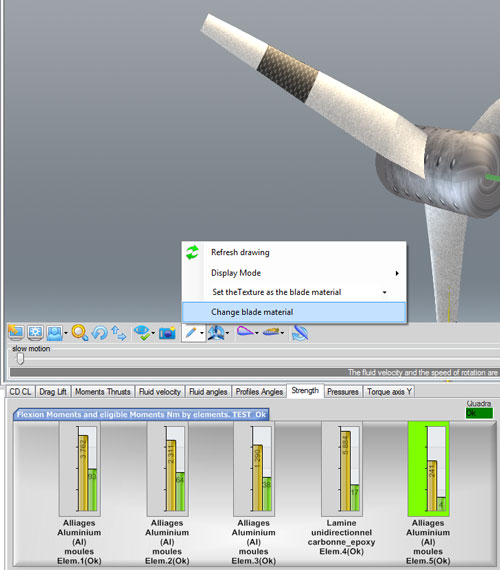
The 3D view menu applies the texture of the material to the blade; the Strength tab shows the material of each element.
Temporary texture colors are not saved with the project: they are mostly useful for a screen copy, for example for a presentation. Besides the texture that follows the material, the 3D view menu offers element colors that do not change the material.
To go further, we can read the result of these choices in the page on the strength of the blade elements, and adjust the profile thickness with the page on the blade thickness distribution.
 Global site map
 Mecaflux
 Tutorials Mecaflux Pro3D
 Tutorials Heliciel
 Tutorials Heliciel PRO CFD
 Mecaflux Store
 Compare software functions
 Quotes, Orders, Payment Methods
 project technical studies