
Discovering the Heliciel software interface: the four zones of the propeller calculation screen
The interface of the Heliciel software has four zones: the update and rebuild buttons (zone 1), the display of the parameters (zone 2), the results (zone 3), and the entry of the parameters with the 3D model (zone 4). Heliciel shows explanatory tooltips when the mouse pointer rests on a zone; a presentation of the interface also gives you the overview you need to start with this propeller, turbine and wing calculation software.
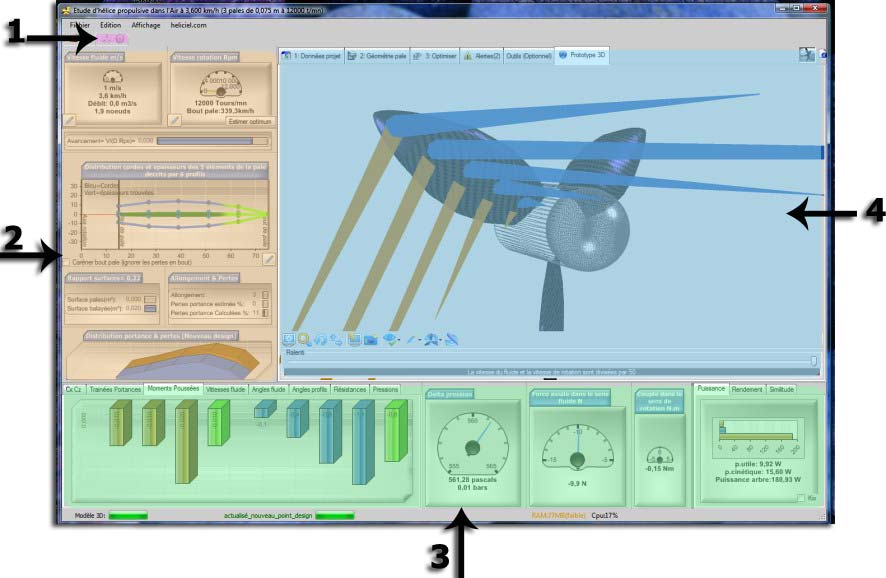
The Heliciel screen, with its four numbered zones.
In this page:
- Zone 1: update and rebuild
- Zone 2: display of the parameters
- Zone 3: the results
- Zone 4: parameter entry and 3D model
1: Zone 1, update and rebuild of the propeller
 Zone 1 is used to update the optimal twist and/or the performance of the propeller. It has two buttons.
 Rebuild the optimum twist and calculate the performance. Heliciel uses the profile performance database to apply the optimum twist that matches the imposed operating conditions. The twist and the performance are updated, and the software status is: New design.
 Recalculate the off-design performance. If you have only changed the rotation speed or the fluid speed, without touching the geometry of the blade, you have changed only the operating point. The performance can then be recalculated without changing the twist. This is useful to know the performance of your propeller when the conditions differ from the design point. Only the performance is updated, and the software status is: Off design.
The software status is shown at the bottom of the window, in the status bar. It tells you whether the results correspond to a blade rebuilt for this operating point ("new design") or to a blade kept as it is, evaluated at other conditions ("off design").
2: Zone 2, display of the parameters
Zone 2 gives you an overview of the parameters you have entered: fluid speed, rotation speed, distribution of the chords and thicknesses of the blade described by its profiles, surface ratio (blade surface over swept surface), aspect ratio and losses. These displays are not used to enter values: entry is done in zone 4.
3: Zone 3, the results
Zone 3 is visible only when you have clicked one of the two update buttons. It groups the results in tabs (CD CL, drag and lift, moments and thrusts, fluid velocity, angles, strength, pressures), with the power, the efficiency and the similitude on the right. If you change a parameter that calls the results into question, the results zone disappears and the update buttons are reactivated to offer you an update : the results displayed thus stay consistent with the parameters.
4: Zone 4, parameter entry and 3D model
Zone 4 is the zone for entering the parameters and displaying the 3D model. It is in this zone that you work most often. The parameter tabs are organized by design phases: project data (fluid, objective, operating point), blade geometry, optimization, alerts, optional tools and 3D prototype.

The tabs of zone 4, arranged in the order of the design phases.
| HELICIEL tutorials | Details of functions heliciel |
To go further, we can open a first project with the page on opening a propeller or wing construction project, then look at each quantity of the calculation with the page on displaying propeller and wing project parameters.
 Global site map
 Mecaflux
 Tutorials Mecaflux Pro3D
 Tutorials Heliciel
 Tutorials Heliciel PRO CFD
 Mecaflux Store
 Compare software functions
 Quotes, Orders, Payment Methods
 project technical studies