
Two dimensioned drawings, an animated 3D view and the pressure graph along the water path.
Kaplan turbine drawings and 3D view: views, trajectories and piezometric line
The right part of the window shows the installation in four forms: two dimensioned drawings, a 3D view where the water flows, and the pressure graph along the water path. All follow the settings live.
Top view, Vertical view, 3D design and Piezometric graph tabs, in the right part of the window. Each block explained here carries a ? help icon in the window: clicking the icon opens the matching section of this page directly.
Contents:
- Top view: casing, distributor and guide vanes
- Vertical view: levels, runner and draft tube
- 3D design: cut, dimensions, exploded view, pitch variation, trajectories
- Piezometric graph: pressure along the water path
Top view: casing, distributor and guide vanes
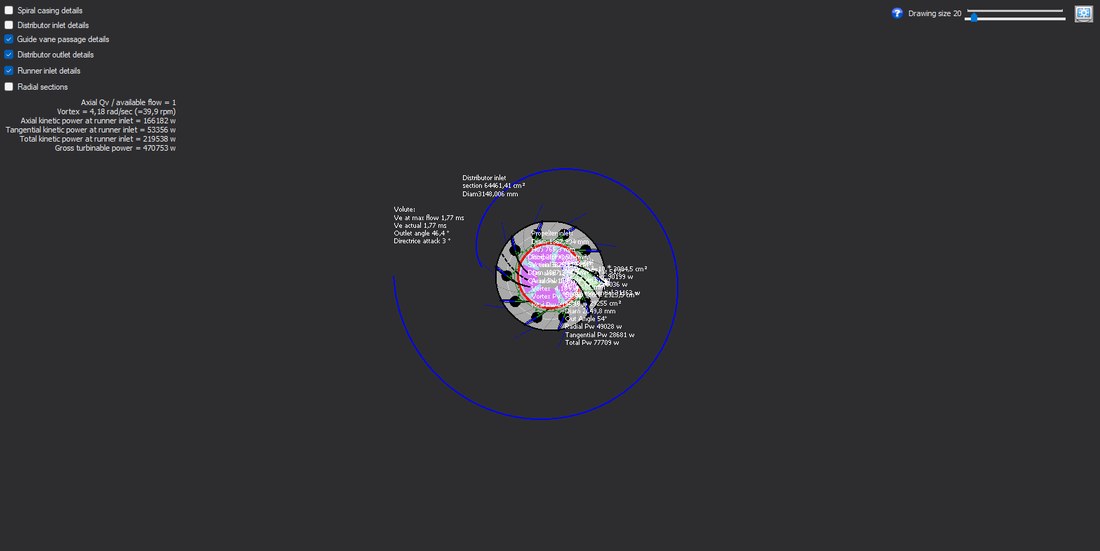
- Open the Top view tab.
- Tick the details you want.
- Set the drawing size; the recentre button returns to the initial framing.
The top drawing shows the spiral of the casing, the guide vane circle and their opening. The display boxes add spiral casing details, distributor inlet and outlet details, guide vane passage details, runner inlet details and radial sections. The drawing size slider and the recentre button set the framing.
The passage section summary gives the ratio of axial flow to available flow, the swirl at the runner inlet (rad/s and rpm), the axial, tangential and total kinetic powers at the runner inlet, and the gross power that can be turbined.
Example
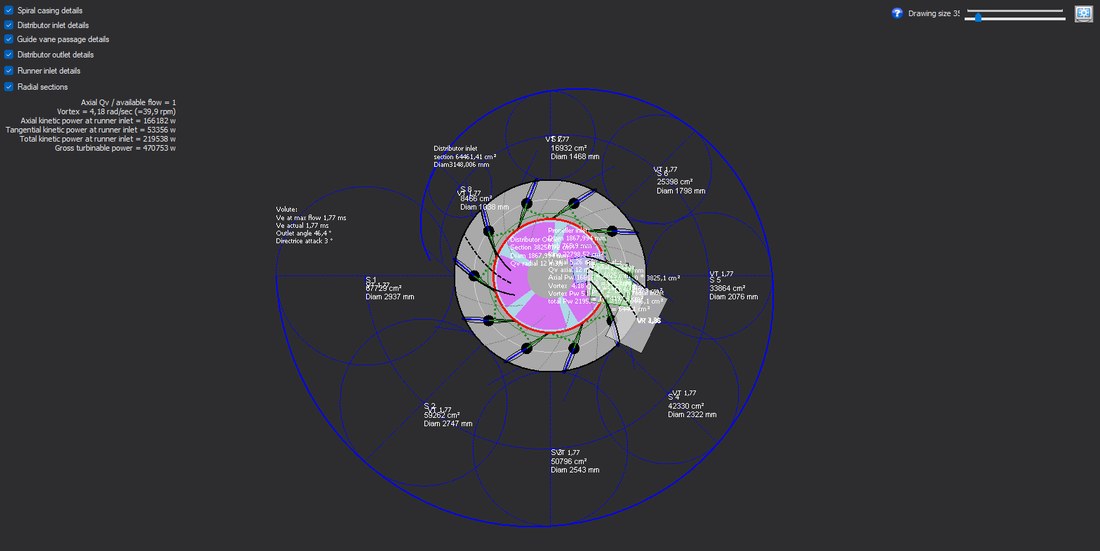
Top view with all details ticked.
Vertical view: levels, runner and draft tube
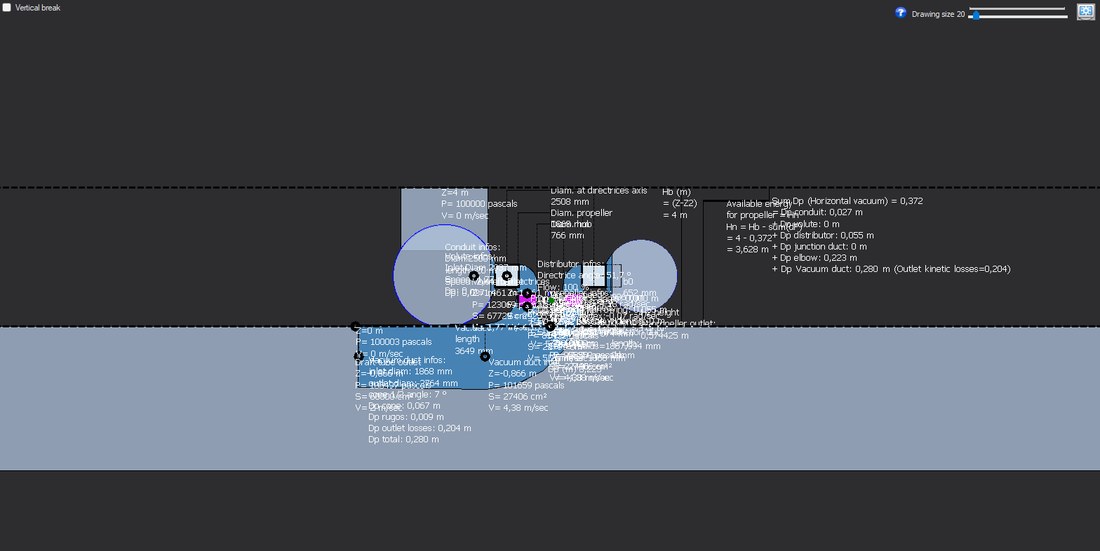
- Open the Vertical view tab.
- Tick Vertical break if the head is large.
The dimensioned vertical drawing of the installation goes from the water levels to the draft tube outlet: reservoirs, penstock, guide vanes, runner, draft tube. The Vertical break box cuts the drawing when the height is large, to keep the turbine readable. Size slider and recentring as in the top view.
3D design: cut, dimensions, exploded view, pitch variation, trajectories
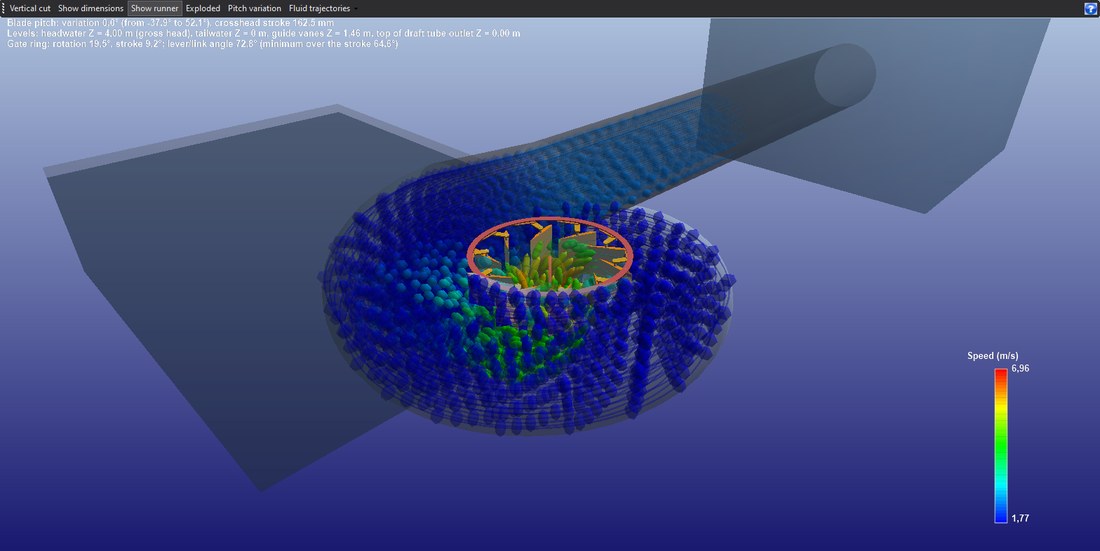
- Open the 3D design tab.
- Rotate the view with the mouse (drag), zoom with the wheel.
- Switch on the toolbar buttons: cut, dimensions, runner, exploded, pitch variation, trajectories.
The 3D view shows the whole installation to scale, upstream and downstream levels included. Six buttons:
- Vertical cut;
- Show dimensions: gross head, H2, runner diameter, hub, b0, axis circle, bulb, junction, draft tube;
- Show runner: slowed rotation, the real rpm being displayed;
- Exploded: the developed sheets of the kit, one guide vane being shown out of several;
- Pitch variation: the mechanism in the hub, which requires a computed runner;
- Fluid trajectories, coloured by velocity (m/s) or by absolute static pressure (kPa).
Without a computed runner, the trajectories stop at the runner inlet.
Examples
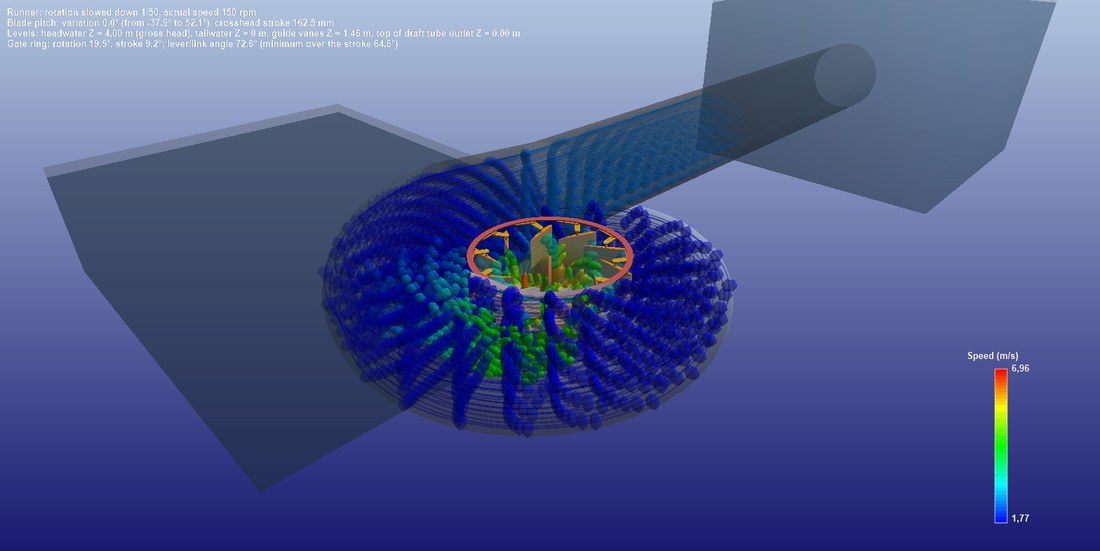
Trajectories coloured by velocity.
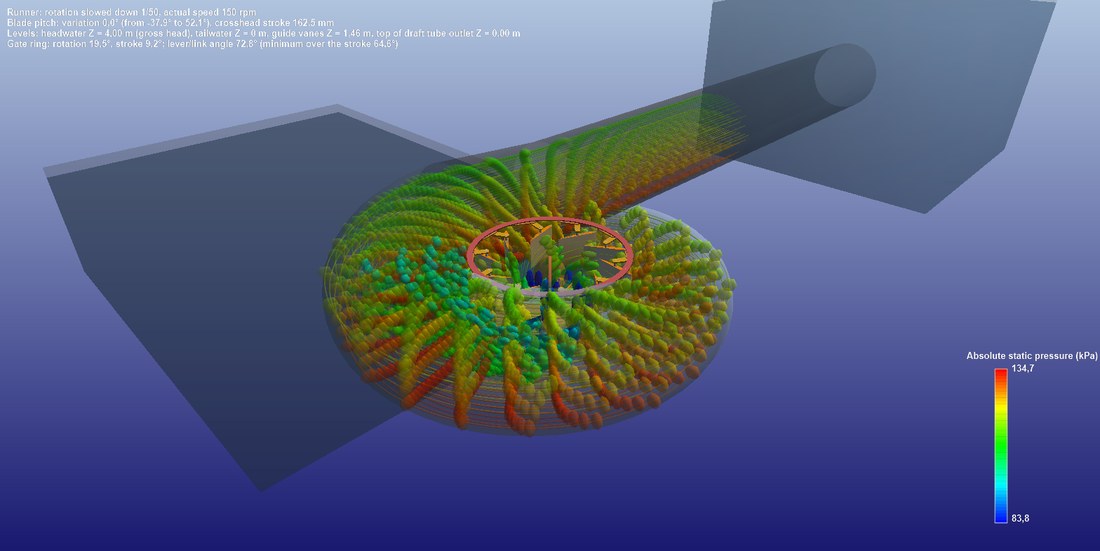
Trajectories coloured by absolute static pressure.
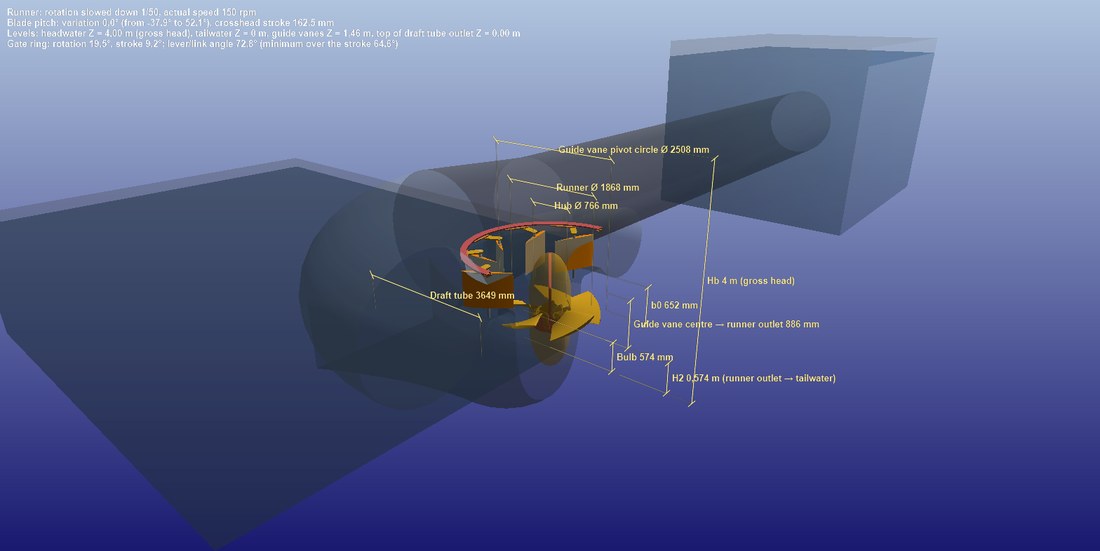
Dimensioned vertical cut.
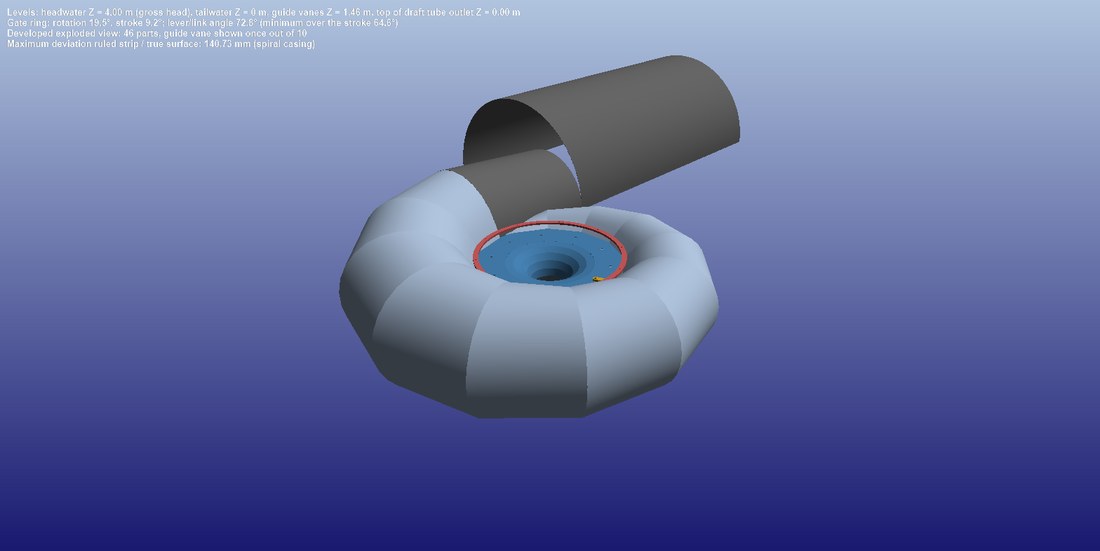
Exploded view: the developed sheets of the fabrication kit.
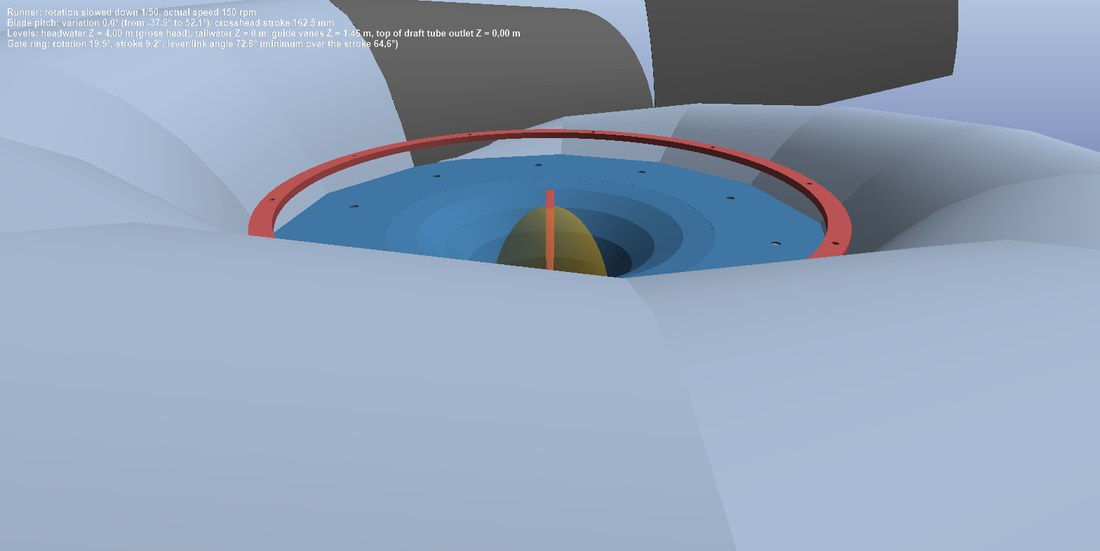
Pitch variation: the mechanism housed in the hub.
Piezometric graph: pressure along the water path
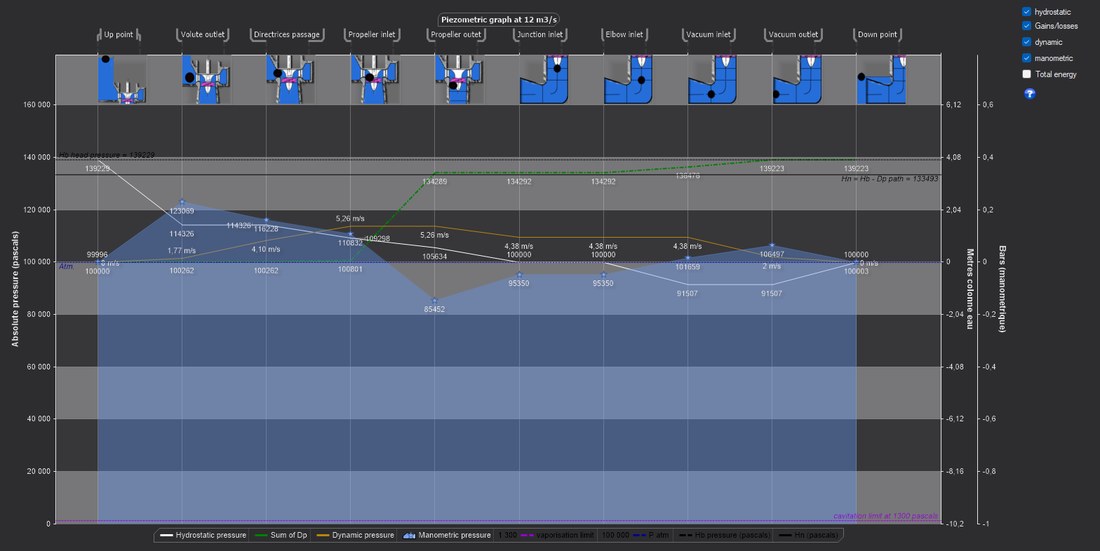
- Open the Piezometric graph tab.
- Tick the series to display.
- Spot where the manometric pressure approaches the cavitation threshold.
Five series, each switched by its box: hydrostatic, dynamic, manometric, gains/losses (sum of losses) and total energy, from the upstream to the downstream reservoir. Markers show the pressure of the head Hb, Hn = Hb − path losses, the atmosphere and the cavitation threshold (vapour pressure).
Where the manometric curve falls below the cavitation threshold, the flow cavitates, usually under the runner: this is the role of the height H2.
Going further
The Hydro Turbine design reference page presents the complete method and a worked case. The other help pages of the window:
- Control panel
- Layout
- Spiral casing
- Distributor
- Runner
- Draft tube
- Specific speed
- Statistics
- Views and piezometric graph
- Fabrication kit
- Results, method, errors
 Global site map
 Mecaflux
 Tutorials Mecaflux Pro3D
 Tutorials Heliciel
 Tutorials Heliciel PRO CFD
 Mecaflux Store
 Compare software functions
 Quotes, Orders, Payment Methods
 project technical studies